\

Mic In And Line In

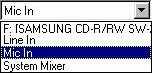
If you see the back part of the CPU or the Cabinet of the computer you will see\ three holes for audio chanels. It will fit only the pins that can be fitted in a tape recorder's Head phone. One of the will be for audio output and two\ will be for audio input. The speaker's pin will be connected to the output hole. Of the two input holes, one will be the \"Mic In\" and the other will be \"Line In\".

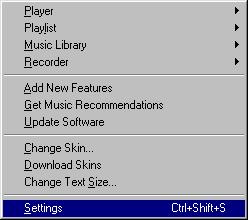
"; if(a==2) { content = content + "Next to the Mic In hole there will be a image of a mic(It is there in my computer. However I can`t be sure of it in yours.) If have chosen the Mic In Option in the source menu,\ the connection from the tape must be in the Mic In hole. The recording source will be Mic In.\ "; } else if(a==1) { content = content + "The hole in the middle will be the Line In hole(It is so in my computer. However I can`t be sure of it in yours.)\ If have chosen the Line In Option in the source menu, the connection from the tape must be in the Line In hole. The recording source will be Line In.\ "; } newwin = window.open("","window","resizeable,width=450,height=350"); setTimeout("newwin.document.write(content)",0); newwin.document.close(); } function next(para) { if(para==100||para==i) { i++; doit(i); } } function last() { i--; doit(i); } function rec(name) { if(name==0) alert("You have clicked the Button to stop recording"); else if(name==1) { alert("You have ended to tutorial by clicking the Record Button. Goodbye"); location.href="help.html"; } } function doit(a) { if(a==0) { this.document.all("text").innerText = "Step 1: Open the MusicMatch Jukebox and Click the Record Button. It is shown by the pointer. This will take you to the next step."; } else if(a==1) { if(desktop.style.visibility=="") desktop.style.visibility="hidden"; else if(desktop.style.visibility=="hidden") desktop.style.visibility="visible"; else if(desktop.style.visibility=="visible") desktop.style.visibility="hidden"; this.document.all("textintable").innerText = "Type the name of the singer and the album here"; pointer.style.visibility = "visible"; text1.style.visibility = "visible"; point.style.top=90; point.style.left=245; this.document.all("text").innerText = "Step 2: This Button will bring up the Record Function. You must enter the details of the Song/Speech you are going to record here. Click the Options Button to coninue."; } else if(a==2) { pointer.style.visibility = "hidden"; text1.style.visibility = "hidden"; menu.style.visibility = "visible"; point.style.top=300; point.style.left=345; this.document.all("text").innerText = "Step 3: For changing the settings like where you wanted to store the files, Source, Quality etc, click options and then Settings. (This can also be done by pressing Shift + Ctrl + S). IMPORTENT: This must be done before recording. Click Settings to continue."; } else if(a==3) { this.document.all("text").innerText = "Step 4: You change the songs directory click the \"Songs Directory\" Button(Shown by the circle). To change the quality chose which quality you need(more Quality means more File Size and vise visa). Click Source to continue."; circle.style.visibility = "visible"; menu.style.visibility = "hidden"; setting.style.visibility = "visible"; point.style.top=420; point.style.left=300; } else if(a==4) { this.document.all("text").innerText = "Step 5: Here you can change the source. To know more about the \"Line In\" or the \"Min In\" click on it. Click System Mixer and then OK to continue."; point.style.top=482; point.style.left=350; source.style.visibility = "visible"; circle.style.visibility = "hidden"; } else if(a==5) { this.document.all("text").innerText = "Step 6: You have completed the tutorial. Now get a MusicMatch Jukebox and create some mp3 files from Cassettes. Click the Record button to continue..."; point.style.top=375; point.style.left=85; source.style.visibility = "hidden"; setting.style.visibility = "hidden"; } } function erase(a) { if(a==1) source.style.visibility = "hidden"; if(a==2) setting.style.visibility = "hidden"; } //*/ //-->

MusicMatch Jukebox Recording Help

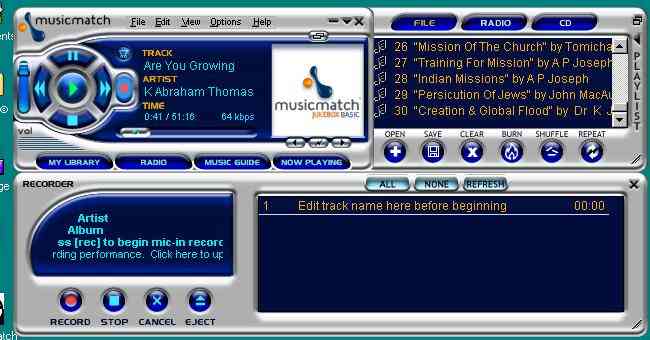
Picture of MusicMatch Jukebox.
Record Button Options Start Recoding Stop Recoding Click Here Change Source OK Line In Mic In Click Here To Continue


<< Last Step Next Step >>